Before you start
You ship; TIJAR is the software. It creates shipments, prints labels, tracks status and computes cost and profit. TIJAR takes no shipping commission and COD money reaches you directly. The delivery fee the customer pays and the shipping cost you pay are two different settings.
Step 1: choose how you ship
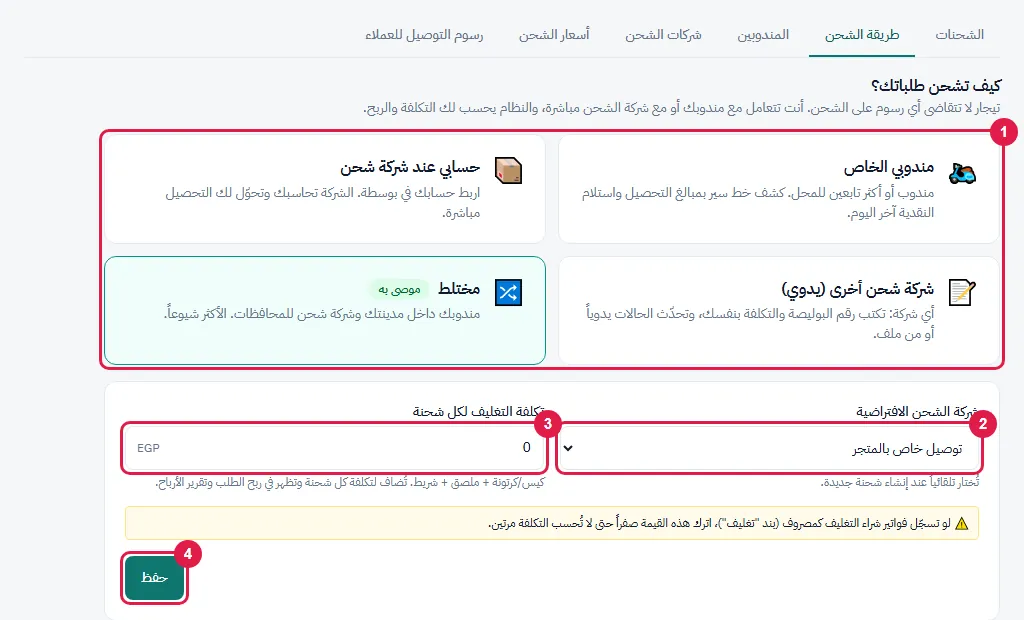
Open Shipping → Shipping method and pick one of four modes: Own driver, My courier account (Bosta), Other courier (manual) or Mixed (recommended). Choose the default courier, enter the packaging cost per shipment and press Save.
Step 2: connect your own Bosta account (beta)
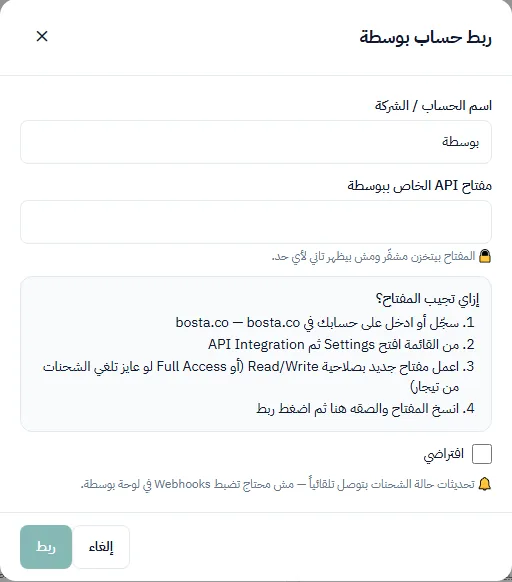
- In bosta.co open Settings → API Integration and create a key with Read/Write (or Full Access to cancel shipments from TIJAR).
- In Shipping → Couriers press Connect on the Bosta card, paste the key and press Connect.
- The key is stored encrypted and tested at once. Status webhooks are set automatically. Then open Bosta settings in the accounts table and pick the pickup location.
Bosta is in beta: pickup requests, returns and settlement statements are not available inside TIJAR yet. Max COD per shipment: EGP 30,000.
Step 3: any other courier (manual)
On the Other courier (manual entry) card press Add courier (manual), give it a name (e.g. "Aramex") and save. Then add your contract prices in Shipping prices → New rate table (base price per weight band, per-governorate prices, COD %, return fee; CSV/Excel import). Book on the courier's own system, then enter the tracking number and cost in TIJAR.
Step 4: your own drivers
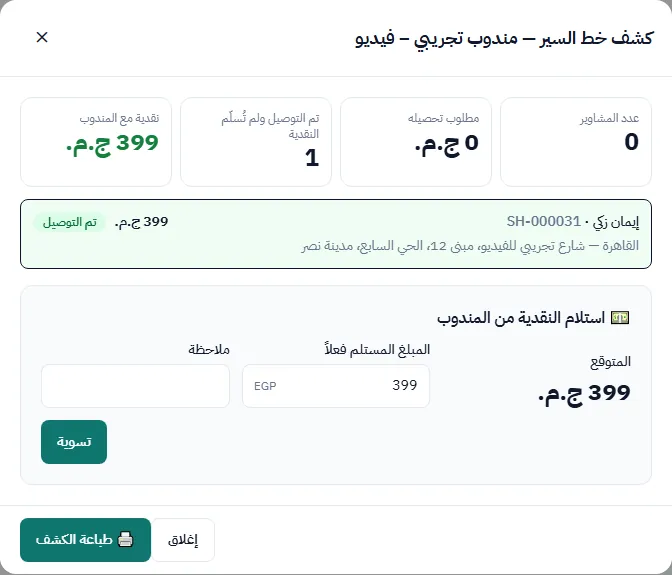
In Drivers press Add driver (name, mobile, active). Choose Store delivery when creating a shipment, or assign later under Store-driver shipments without a driver. The run sheet lists stops and COD amounts, lets you mark delivered or failed, prints an A4 sheet, and records the cash handover at the end of the day (any difference is flagged and you are alerted).
Step 5: delivery fees and free shipping
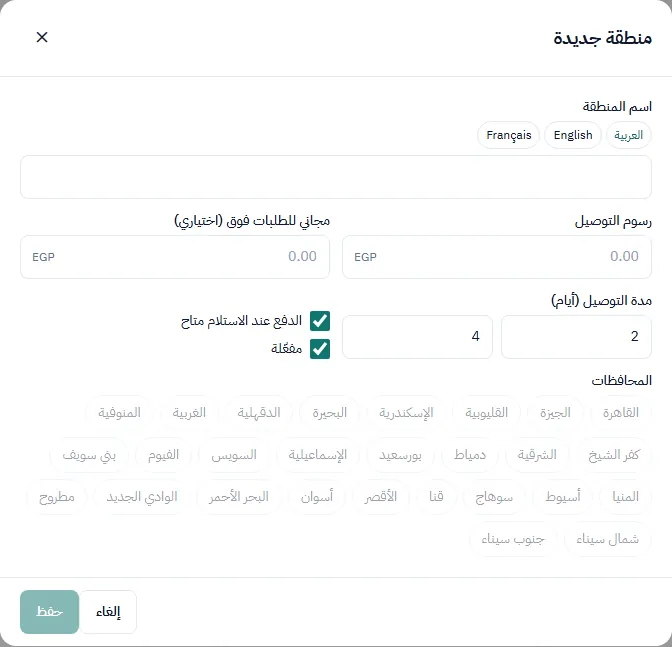
Customer delivery fees: each zone has governorates, a fee, an optional free over amount, delivery days, a COD available switch and an active switch. A governorate outside every zone cannot order; deleting all zones makes delivery free everywhere.
Step 6: packaging cost
Set it once in Shipping method (e.g. bag 4 + label 2 + tape 2 = EGP 8). Don't also record packaging purchases as an expense.
Step 7–9: create, print and track
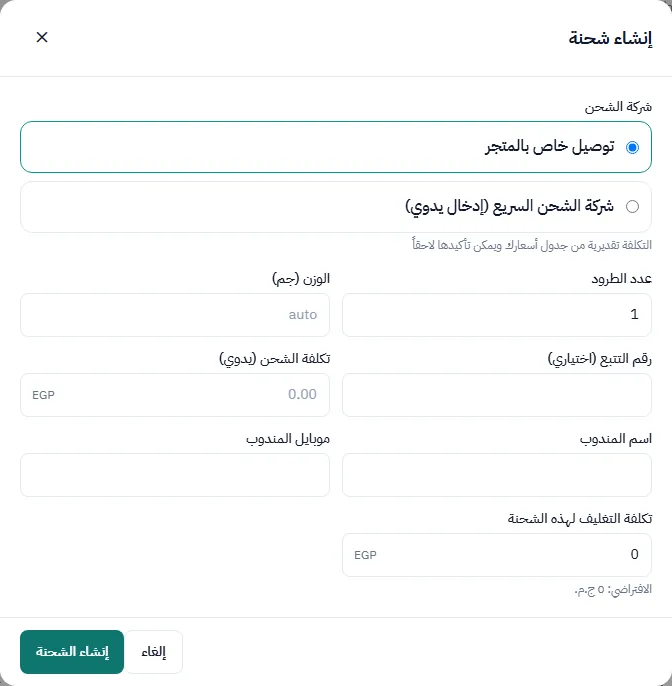
- Open a confirmed order and press 🚚 Ship: choose the courier, parcels, weight, tracking number and cost, then Create shipment.
- In Shipments tick shipments and print 4×6 or A4 labels (barcode + COD amount). Bosta's official label is on the shipment page.
- Update statuses on the shipment page (Bosta updates itself; manual couriers can use a CSV file), send the customer the tracking link and confirm the real cost.
Status: own drivers, manual couriers, labels, fees, tracking and COD reconciliation are live; Bosta is beta; Mylerz, ShipBlu, Aramex, J&T and R2S have no direct integration yet (use them as manual couriers).
Related topics
Still have a question?
Our team answers on WhatsApp and can help you set up your store.